
User manual
Velddra 0.10.4 · phone app and farm computer
Velddra has two apps that work as one farm. The phone app is for everyone in the lands. The farm computer is an optional program for the office PC. Phones sync to it over the farm Wi-Fi, and it keeps the daily backups. A farm can run on one phone alone; add the farm computer when you want it.
1. Install the phone app
Velddra isn't on the Play Store, so you install it from our website. You need Android 7 or newer.
- On the phone, open velddra.co.za and tap Download for Android. On a computer, scan the QR code on that page with the phone's camera instead.
- Open the downloaded file. Android may ask whether your browser may install apps. Allow it. It asks because the app isn't from the Play Store.
- Tap Install, then Open.
Updating: download the app again and tap Update. Your farm stays on the phone.
2. First steps on the phone
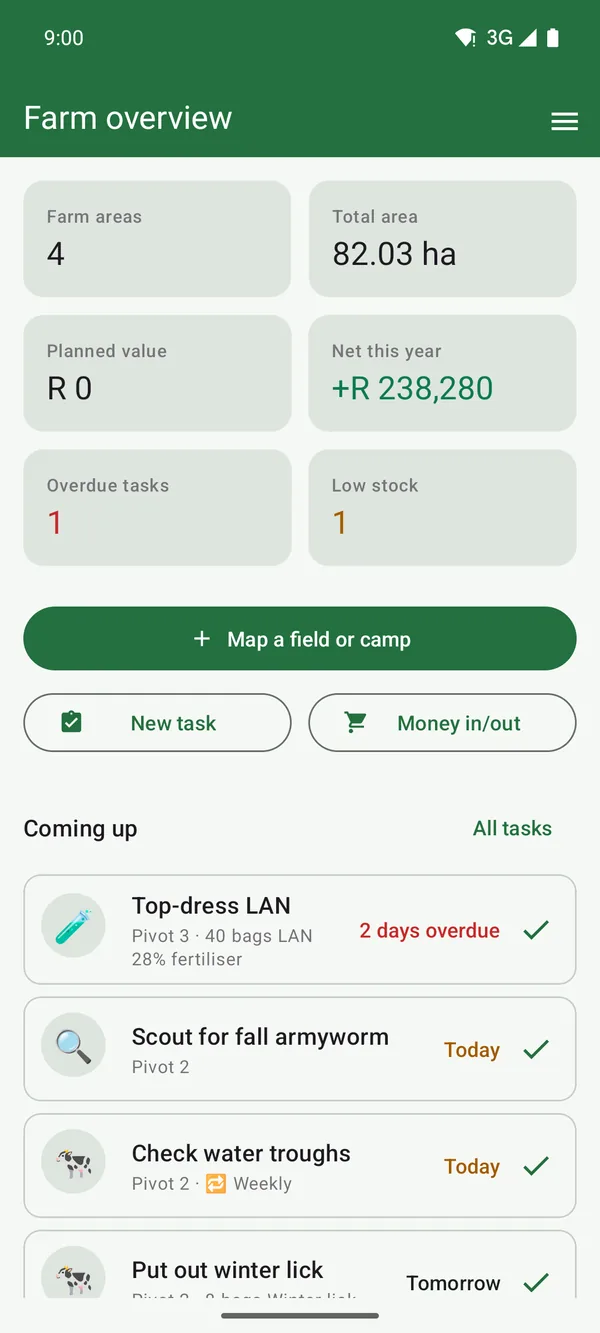
Velddra opens on the Farm overview: your mapped area, what the crops should bring in, money in and out this year, overdue tasks and low stock. Tap a tile to go to it.
Everything else is in the menu: tap ☰ at the top right. Left-handed? Move the menu button to the left in Settings → I hold my phone in my…
Just want to look around? ☰ → Settings → Load sample farm data fills the app with example stock, tasks, money, machines and herds. Remove sample farm data takes it all out again and leaves your own data.
Everything works with no signal. What you enter is saved on the phone straight away.
3. Map your lands
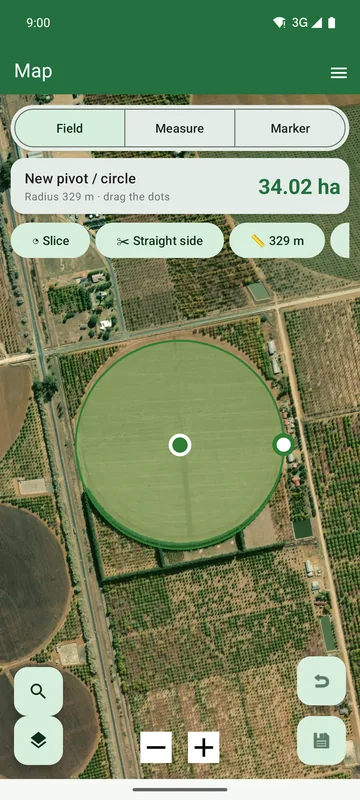
Open ☰ → Map. Use 🔍 to jump to a town or to coordinates (like -25.90, 28.35). The layers button switches between satellite and street map.
A land, camp or orchard
- Tap Field at the top.
- Tap the map at each corner of the land. The area and perimeter add up as you go. Made a mistake? Tap undo.
- Tap save and give it a name.
A centre pivot
Tap Field, then the circle button. Tap the centre of the pivot, then its edge. A pivot cut off by a road? Use Slice or Straight side.
Markers and measuring
Marker drops a pin on a gate, borehole, trough, shed or problem spot. Give it a type, a note and a photo. Measure measures a line, like a fence or a pipe run.
Fixing a shape
Tap a land on the map, then ✏️. Drag the dots to move corners, then save.
Your lands and markers are listed under ☰ → Farm areas & markers. Tap one to open its page.
4. Fields and crops
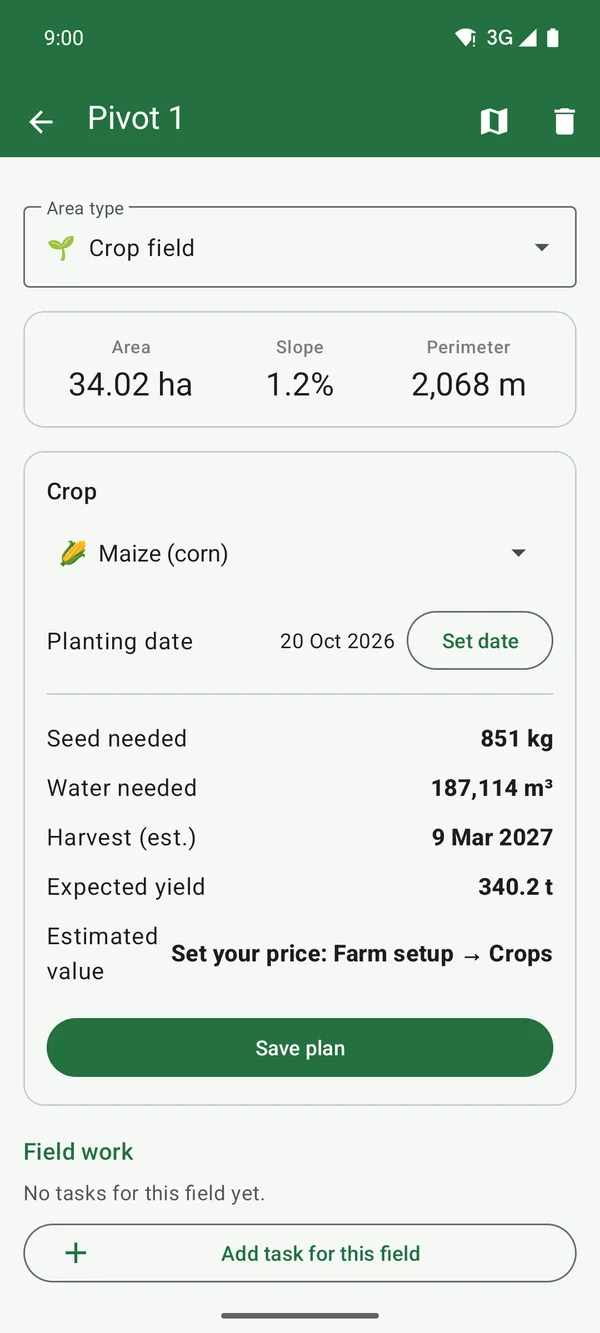
Open a field from Farm areas (or tap it on the map, then the arrow).
- Pick the crop and the planting date. Velddra works out the seed and water needed, the harvest date and the expected yield.
- To see what the crop is worth, put in your own price per tonne: ☰ → Farm setup → Crops. Without a price, the crop isn't valued. Velddra doesn't guess prices.
- Your crop isn't in the list? Pick + Add your own crop… at the bottom of the crop list.
- Lower down: the field's tasks, and the money booked to it (inputs, labour, income and net).
5. Tasks
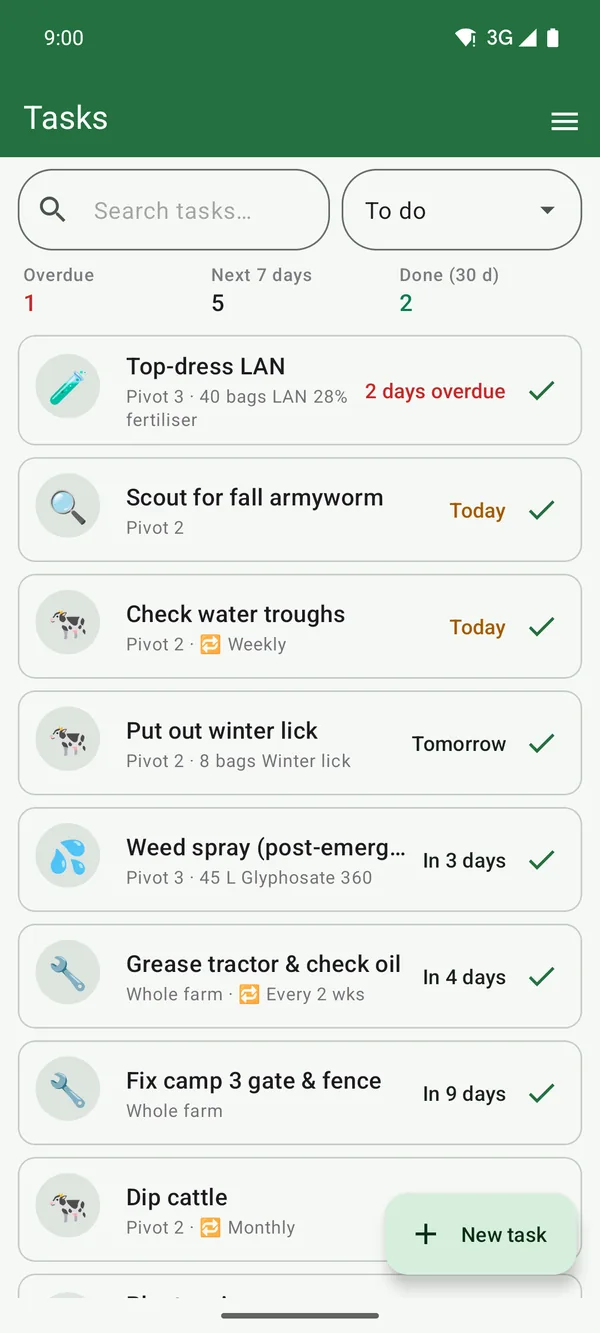
☰ → Tasks shows the field work for the whole farm: overdue, today and coming up.
- Tap New task. Pick the job (planting, spraying…), the field and the date.
- Assign it to someone, pick the machine, and add the inputs it uses (seed, fertiliser, chemicals) with the quantity.
- Repeating work, like checking troughs every week? Set Repeat, and the task comes back by itself.
When the work is done, tap ✓. The inputs come off stock, and the labour and machine hours are booked to that field.
6. Stock and money
Stock (☰ → Stock) holds your seed, fertiliser, chemicals, diesel and feed. Record purchases; what tasks use comes off by itself. Items running low are flagged before you run out.
Money (☰ → Money) lists money in and out, booked to the field it belongs to. Stock purchases and labour from tasks appear here by themselves. Tap Add entry for anything else, like a sale, a repair or the monthly lease. Regular payments can repeat.
7. Staff, machinery and suppliers
- Staff & timesheets: your staff with their pay per day, hour or month, days worked and wages owed. Tap 📞 to call someone.
- Machinery: each machine with its engine hours (or kilometres) and when the next service is due. "Service due" shows when it's time.
- Suppliers: who you buy from and sell to, what you've spent with each, and one tap to call.
8. Livestock
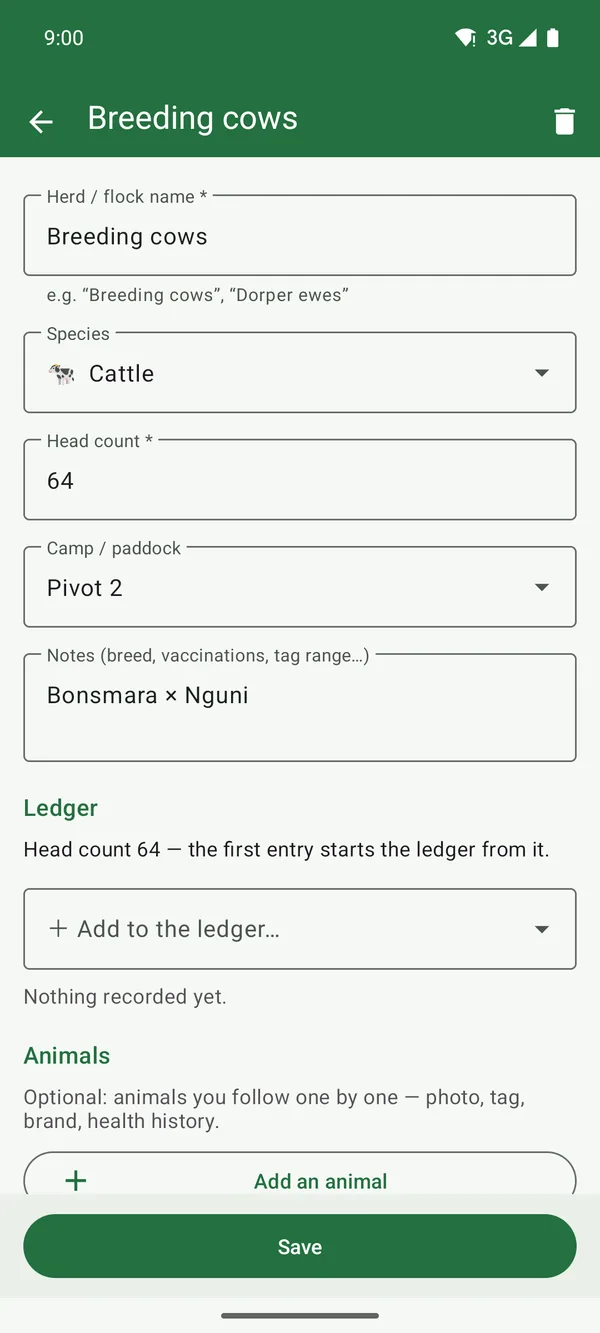
☰ → Livestock lists your herds and flocks, the camp they're in and head per hectare.
- Open a herd and use Add to the ledger for births, deaths, sales, purchases and counts. The head count follows the ledger.
- Want to follow animals one by one? Add an animal with a photo, tag and brand, and record treatments. Velddra warns you about withdrawal periods after a treatment.
9. Reports
☰ → Reports shows the year so far: money in, money out and net, where the money went, the value of your stock and profit per field. The farm computer adds the bigger reports (payroll, VAT, diesel logbook, asset register, livestock) and exports for your accountant.
10. Farm setup and settings
- Farm setup (☰ → Farm setup): switch off what you don't farm, and it disappears from menus, forms and reports. Nothing is deleted; switch it back on any time. Add your own crops, animal classes, jobs and categories here.
- Settings: left- or right-handed layout, map provider, area and distance units, currency, sync, sample farm data.
- Reset this phone (Settings, at the bottom) removes all Velddra data from the phone so you can start fresh. If the phone has changes the farm computer hasn't got yet, it offers to sync first.
11. Install the farm computer
The farm computer runs on a Windows 10 or 11 PC (64-bit) in the office. It needs no internet to work. Phones reach it over the farm Wi-Fi.
- On the PC, download Velddra for Windows (about 145 MB).
- Right-click the zip → Extract All… Put the folder somewhere it can stay, like Documents. Don't run it from inside the zip.
- Open the folder and double-click Velddra.exe. If Windows says "Windows protected your PC", click More info → Run anyway. It warns because Velddra is new, not because anything is wrong.
- The first time, fill in Create your farm: the farm's name, your name, email, a password and the currency.
- Windows asks whether to allow Velddra on networks. Tick Private networks and click Allow. Without this, phones can't reach it.
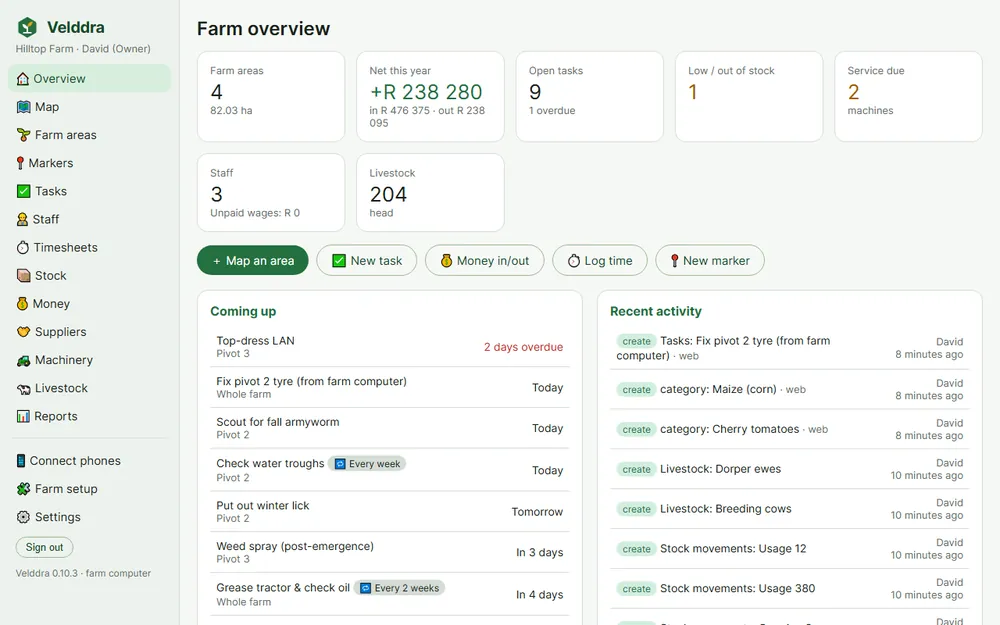
Closing the window doesn't stop it. Velddra keeps running in the system tray (by the clock) so phones can keep syncing. Right-click the tray icon to open it again, see the backups, or Quit.
Everything on the phone is also on the farm computer, on a big screen: the map, tasks, stock, money, staff, timesheets, machinery, livestock, reports and farm setup. The map has the same town search, and you can draw fields and drop markers there too.
12. Connect the phones
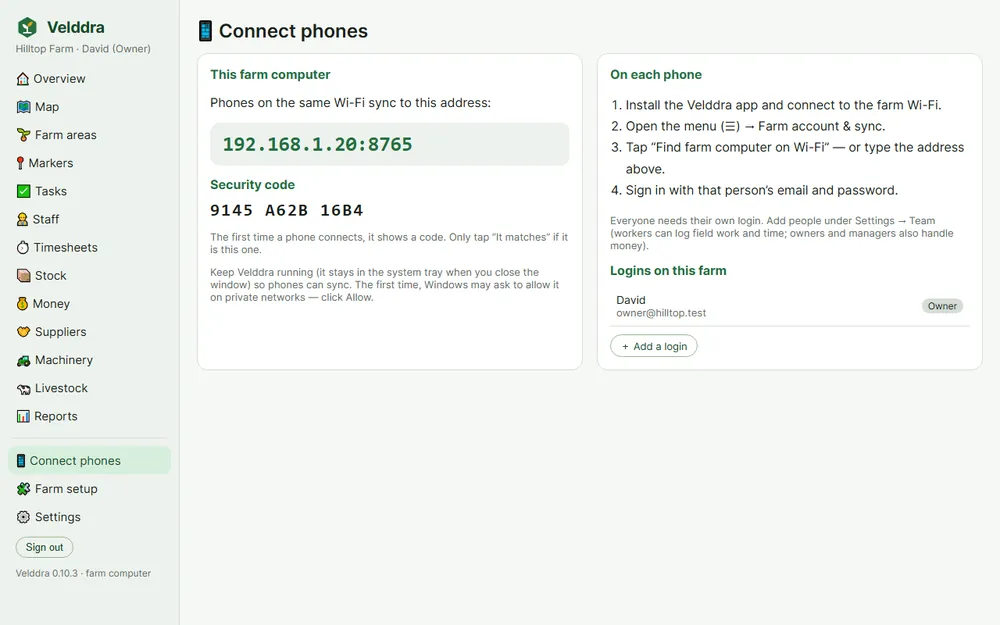
- On the farm computer, open Connect phones. It shows this PC's address and a security code.
- On the phone, join the farm Wi-Fi. Then ☰ → Farm account & sync.
- Tap Find farm computer on Wi-Fi, or type the address from Connect phones.
- Sign in with that person's email and password.
- The first time, the phone shows a security code. Tap It matches only if it's the same code as on Connect phones.
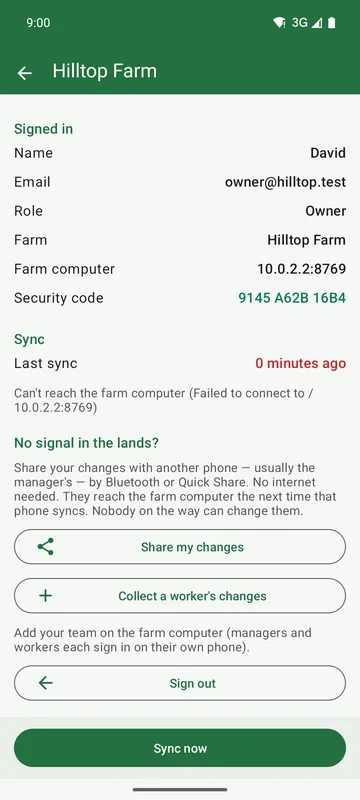
Once signed in, Farm account & sync shows the farm, your role, the farm computer and when the phone last synced.
If the farm already had data on the phone, it's sent to the farm computer on the first sync. Nothing is lost.
Currency and units are set by the farm. If the owner changes them, every phone follows.
13. Your team
Everyone signs in with their own login. On the farm computer: Settings → Team → Add a login, with their name, email, a temporary password and their role:
| Role | What they can do |
|---|---|
| Owner | Everything, including the farm's settings and the team. That's you, the person who created the farm. |
| Manager | Runs the farm day to day, including money, and can add people to the team. |
| Worker | Logs field work and time. Workers don't see money or pay. |
Tip: put the same email on the person's staff record (Staff). They then see My tasks on their phone.
Forgotten password? The owner (or a manager, for workers) sets a new one under Settings → Team → Reset password.
The owner forgot their own password? On the farm computer, right-click the Velddra icon by the clock → Reset owner password… and choose a new one. This works only on the farm computer itself, never from a phone or another PC. Phones stay signed in.
14. Sync, and working with no signal
- With Auto-sync on (Settings), phones sync by themselves whenever they're on the farm Wi-Fi. Sync now does it straight away.
- Work in the lands with no signal as normal. It syncs when the phone is back on the Wi-Fi.
- Worker far away? In Farm account & sync, the worker taps Share my changes and sends them by Bluetooth or Quick Share to the manager's phone. The manager taps Collect a worker's changes. They reach the farm computer the next time the manager's phone syncs. No internet needed, and nobody on the way can change them.
The map pictures need internet. The satellite and street maps are loaded from the internet. The phone keeps the areas you've already looked at for a while. Your lands, markers and everything else work without internet.
15. Backups, restoring and starting over
- Once a day the farm computer copies the farm to Documents\Velddra backups, with the photos, and keeps the last 14 days. Tray menu → Back up now or Open backups folder.
- Now and then, copy that folder to a USB stick or a cloud drive. If the PC is stolen or the disk dies, that copy is your farm.
- Going back to an earlier day: right-click the tray icon → Restore a backup… and pick the day. Today's farm is backed up first, so you can come back to it. Phones keep their own changes and send them again on their next sync; anyone who signed in after that backup signs in again on their phone.
- Starting over: on the farm computer, Settings → Farm → Start over (owner only: type RESET and your password). It makes a full backup first, then removes the whole farm (records, logins, phones and photos) and shows Create your farm. Phones are signed out. When someone signs in to the new farm with a phone that still holds the old farm, the phone asks first: Start fresh (removes the old farm from that phone, recommended) or Send it (adds the old data to the new farm).
- Starting over on one phone only: Settings → Reset this phone. The farm stays on the farm computer and comes back when you sign in again.
- Updating the farm computer: quit Velddra (tray → Quit), download the new zip, extract it and run the new Velddra.exe. You can delete the old folder. Your farm isn't in that folder (it's in
%APPDATA%\Velddra\farm), so it carries over, and phones stay connected.
16. When something doesn't work
- The phone can't find the farm computer.
- Check that the phone is on the same Wi-Fi as the PC and that Velddra is running (tray icon). If Windows never asked about networks, or you clicked Cancel: Windows Security → Firewall & network protection → Allow an app through firewall → tick Velddra for Private networks. Still nothing? Type the address from Connect phones instead.
- The security code doesn't match.
- Tap Cancel. Make sure you typed the right address and are on your own farm Wi-Fi. Only continue when the codes match.
- Android won't install the app.
- Allow your browser to install apps when Android asks (Settings → Apps → your browser → Install unknown apps). Check that the phone runs Android 7 or newer.
- Windows won't start Velddra.exe.
- Extract the zip first (right-click → Extract All). On "Windows protected your PC", click More info → Run anyway.
- The phone says the farm computer no longer accepts its sign-in.
- The farm computer was started over, a backup from before you signed in was restored, or your login was removed. Open Farm account & sync, sign out and sign in again. If the phone asks about another farm's data, choose Start fresh unless you really want that data in the new farm.
- I forgot my password.
- Ask the owner to set a new one (Settings → Team). The owner: right-click the Velddra icon by the clock on the farm computer → Reset owner password…
- The map is grey.
- The map pictures load from the internet. With no connection you may see grey where you haven't looked before. Your lands and markers still show.
- I want to start over on a phone.
- Settings → Reset this phone. If you use a farm computer, sync first; the farm stays there and comes back when you sign in again.
Something missing from this manual? Tell us, and we'll add it.